
Proxy Setup Guide
Configure proxies in NestBrowser to assign dedicated IP addresses to each browser profile. Covers all proxy types and configuration options.
Assigning a dedicated proxy to each browser profile ensures complete IP isolation between accounts. NestBrowser supports all major proxy protocols.
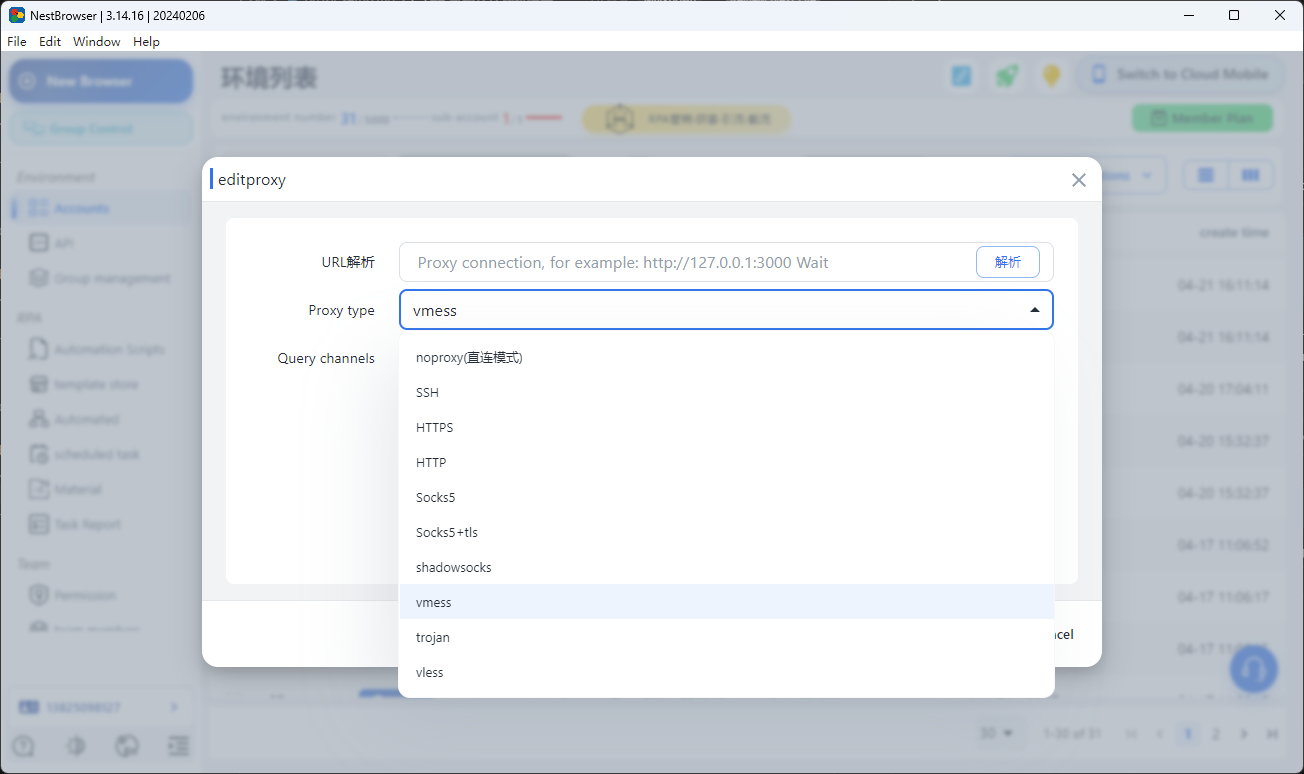
Supported Proxy Types
| Type | Protocol | Best For |
|---|---|---|
| HTTP | HTTP/HTTPS | General web browsing |
| SOCKS5 | All protocols | Recommended for most use cases |
| SOCKS4 | TCP only | Legacy support |
| SSH Tunnel | SSH | Advanced, maximum security |
| SHADOWSOCKS | All protocols | Recommended for most use cases |
| VMESS | All protocols | Recommended for most use cases |
| VLESS | All protocols | Recommended for most use cases |
| TROJAN | All protocols | Recommended for most use cases |
Recommendation: Use SOCKS5 for the best combination of speed, compatibility, and privacy.
Configuring a Proxy for a Profile
- Open profile settings (click the ⚙️ icon on any profile)
- Go to the Proxy tab
- Select your proxy type
- Enter the connection details:
Host:     proxy.yourprovider.com  (or IP address like 123.45.67.89)
Port:     9000
Username: your_username  (leave blank for IP-auth proxies)
Password: your_password  (leave blank for IP-auth proxies)
- Click Test Proxy to verify the connection
- Click Save
Reading the Proxy Test Result
After clicking Test Proxy:
✅ Success — Shows:
- External IP address
- Country and city
- ISP/Provider name
❌ Failed — Common causes:
- Wrong credentials
- Proxy server is offline or overloaded
- Firewall blocking the connection
- Wrong port number
Authentication Methods
Username + Password (Most Common)
Enter credentials directly in the proxy settings.
IP Whitelist Authentication
Some providers authenticate based on your IP address instead of a username/password:
- Get your current IP (visit whatismyip.com)
- Add it to the whitelist in your proxy provider’s dashboard
- Leave username/password blank in NestBrowser
Proxy Rotation Settings
For profiles used in web scraping or bulk account creation:
- Rotate per request: New IP for every HTTP request
- Rotate per session: New IP when profile is launched
- Sticky session: Keep the same IP for the entire session (recommended for social media accounts)
Access these settings in: Profile Settings → Proxy → Advanced Options
Global Proxy Settings
Set a default proxy that applies to all new profiles:
- Go to Settings (top-right menu) → Proxy Defaults
- Enter your default proxy configuration
- New profiles will inherit this proxy (can be overridden per-profile)
Checking for IP Leaks
After launching a profile with a proxy, verify there are no leaks:
- Visit browserleaks.com/ip
- You should see your proxy IP, not your real IP
- Visit browserleaks.com/webrtc
- WebRTC should show “No leak detected”
- Visit dnsleaktest.com
- DNS queries should resolve through your proxy, not your ISP
NestBrowser automatically blocks WebRTC leaks. If you see a leak, double-check your proxy configuration.
Proxy Provider Recommendations
For E-Commerce (Amazon, eBay, Etsy)
- Residential: Bright Data, Oxylabs, Smartproxy
- ISP Static: SOAX, NetNut
For Social Media (Facebook, TikTok, Instagram)
- Mobile: iProxy, Proxy302
- Residential: Bright Data, PacketStream
For Budget / Testing
- Datacenter: Webshare, ProxyEmpire
⚠️ Avoid free proxies — they are shared, flagged, and may log your traffic.
Troubleshooting
Proxy connects but gets slow over time: The proxy server may be overloaded. Try a different server from your provider or upgrade your proxy plan.
Account gets flagged despite using a proxy:
- Check that you’re using a unique proxy per account (not shared between accounts)
- Verify the proxy isn’t already flagged — try a fresh IP
- Make sure profile timezone matches proxy location
”Connection refused” error:
- Port number may be wrong
- Your IP may not be whitelisted
- Provider may require a different connection method
Slow connection speeds: Residential proxies are inherently slower than datacenter proxies. Use geographically closer proxies to improve speed.